
-
Korting
-
Korting
-
Korting
-
Korting
-
Korting
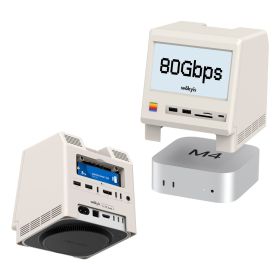
An SSD enclosure for Mac is a compact housing that turns an internal M.2 SSD into a portable external drive you connect to your MacBook, iMac, Mac mini or Mac Studio via USB-C, USB4 or Thunderbolt. It is the most affordable way to add hundreds of gigabytes or several terabytes of fast storage to a Mac, without paying Apple's price for a larger built-in SSD.
Last updated: October 2026. Compatibility info covers Apple silicon Macs up to the M4 generation and Intel Macs with USB-C or Thunderbolt 3.
What does an SSD enclosure do for your Mac?
Built-in Mac storage cannot be upgraded after purchase on most models, so many Mac owners run out of space for photo libraries, video projects or backups. An SSD enclosure solves this: you place a standard M.2 NVMe SSD (or an M.2 SATA SSD, if the enclosure supports it) inside, connect it with a single USB-C cable, and macOS recognises it as an external drive. Because the enclosure draws power from your Mac's port, no separate power adapter is needed. The result is external storage that is smaller than a pack of gum, considerably faster than a traditional hard drive, and easy to swap or upgrade later by simply replacing the SSD inside. Many enclosures use an aluminium housing that works as a heatsink, which helps the SSD keep its speed during long file transfers.
Why Mac users choose an SSD enclosure
An enclosure plus an M.2 SSD typically costs a fraction of a Mac's internal storage upgrade for the same capacity.
Format the drive as APFS and use it as a quick, silent Time Machine backup disk that fits in your bag.
On USB4 or Thunderbolt, speeds are high enough to edit 4K video in Final Cut Pro or work on a Lightroom catalogue directly from the drive.
Upgraded your PC or console SSD? Put the old M.2 drive in an enclosure and turn it into portable storage.
How fast is an external SSD enclosure on a Mac?
The speed you get depends on three things: the connection standard of the enclosure, the port on your Mac, and the SSD inside. The slowest of the three sets the limit. The table below shows what to expect per connection type.
| Connection | Max bandwidth | Typical real-world speed | Which Macs |
|---|---|---|---|
| USB 3.2 Gen 2 | 10 Gbps | Up to approx. 1,000 MB/s | All Macs with USB-C |
| USB 3.2 Gen 2x2 | 20 Gbps | Approx. 1,000 MB/s on Mac (Macs do not support Gen 2x2 and fall back to 10 Gbps) | All Macs with USB-C |
| USB4 | 40 Gbps | Approx. 3,000 to 3,800 MB/s | Apple silicon Macs with Thunderbolt / USB 4 ports |
| Thunderbolt 3 / 4 | 40 Gbps | Approx. 2,500 to 2,800 MB/s | Intel Macs with Thunderbolt 3 and all Apple silicon Macs |
| Thunderbolt 5 | 80 Gbps (120 Gbps boost) | Up to approx. 6,000 MB/s | Macs with Thunderbolt 5, such as MacBook Pro M4 Pro / M4 Max, Mac mini M4 Pro and Mac Studio (2025) |
Bandwidth figures are the interface maximums defined in the USB-IF (USB) and Intel/USB4 (Thunderbolt) specifications. Real-world speeds are typical sequential read results and depend on the SSD model, the enclosure chipset and the cable used.
Which SSD fits in an SSD enclosure?
Most enclosures are made for M.2 SSDs, the small stick-shaped drives also used in laptops, PCs and game consoles. Before you buy, check these points against the specifications of the enclosure:
- M.2 NVMe (PCIe) SSDs are supported by almost every modern enclosure and give the highest speeds.
- M.2 SATA SSDs only work in enclosures that list SATA support, and are limited to around 550 MB/s.
- Check the supported lengths: 2230, 2242, 2260 and 2280 are the common M.2 sizes, with 2280 being the most widely used.
- SSDs with a pre-fitted heatsink usually do not fit, as the enclosure itself handles cooling.
- Apple's own internal SSDs use a proprietary connector and need a dedicated Apple SSD enclosure.
- Thunderbolt 5 and USB4 enclosures reach full speed only with a PCIe 4.0 or newer NVMe SSD.
How do I choose the right SSD enclosure for my Mac?
Start with the port on your Mac, then pick an enclosure that matches it. Paying for Thunderbolt 5 makes little sense if your Mac only has USB-C at 10 Gbps, while a USB 3.2 Gen 2 enclosure would hold back a MacBook Pro with Thunderbolt 5.
A USB 3.2 Gen 2 (10 Gbps) enclosure is the best value for documents, photos and Time Machine. Works with every USB-C Mac.
Choose USB4 or Thunderbolt 4 for 3,000 MB/s class speeds when editing video or working with large RAW libraries.
With a Thunderbolt 5 Mac and a fast PCIe 4.0 or 5.0 SSD, a Thunderbolt 5 enclosure gets close to internal SSD speeds.
Look for an aluminium housing for heat dissipation, a tool-free design for easy SSD swaps, and a short USB-C cable in the box.
Which SSD enclosure from our range fits your Mac?
SB Supply carries two types of SSD enclosures for Mac: standalone Casecentive enclosures that work with any Mac, and Wokyis docking stations that combine an SSD enclosure with a USB hub and are designed to sit under a Mac mini M4 or M4 Pro. All five models accept M.2 NVMe SSDs up to 8 TB. The comparison below shows the key differences in speed, build and extras.
| Model | Type | Max speed | SSD support | Build and cooling | Extras | Best for |
|---|---|---|---|---|---|---|
| Casecentive Waterproof M.2 NVMe SSD Enclosure 10Gbps | Portable enclosure | 10 Gbps (up to 1,000 MB/s) | NVMe M-Key and B+M Key, 2230 / 2242 / 2260 / 2280, up to 8 TB | IP65 waterproof and dustproof, reinforced aluminium shell, silicone thermal pad | Screwdriver, screws, thermal pad and USB-C cable included | Travel, outdoor use and everyday backups on any USB-C Mac |
| Casecentive M.2 NVMe SSD Enclosure 40Gbps | Portable enclosure | 40 Gbps (USB4) | NVMe M-Key and B+M Key, 2230 / 2242 / 2260 / 2280, up to 8 TB | Fanless aluminium body, silicone thermal pads on SSD and controller | Screwdrivers, thermal pads and USB-C to USB-C cable included | Photo and video editing on Apple silicon Macs with Thunderbolt or USB4 |
| Casecentive M.2 NVMe SSD Enclosure 80Gbps | Portable enclosure | 80 Gbps (USB4 / Thunderbolt) | NVMe M-Key and B+M Key, 2230 / 2242 / 2260 / 2280, up to 8 TB | Fanless ribbed aluminium body, copper heat sink and silicone thermal pads | Screwdrivers, copper heatsink, thermal pads and USB-C cable included | 4K and 8K video and large media libraries on Thunderbolt 5 Macs |
| Wokyis Retro M5 Docking Station 10Gbps | Docking station with SSD slot | 10 Gbps (SSD slot) | M.2 NVMe, up to 8 TB | Retro Macintosh design, made to fit Mac mini M4 / M4 Pro | 14-in-1 hub: 4x USB-A, 1x USB-C 10 Gbps, SD and microSD UHS-II readers, 5 inch IPS display (1280 x 720) | Mac mini M4 owners who want extra storage and more ports in one unit |
| Wokyis Retro M5 Docking Station 80Gbps | Docking station with SSD slot | 80 Gbps (SSD slot, Thunderbolt 5) | M.2 NVMe, up to 8 TB | Retro Macintosh design, made to fit Mac mini M4 / M4 Pro | 15-in-1 hub: 4x USB-A, 1x USB-C 10 Gbps, SD and microSD UHS-II readers, 5 inch IPS display, Intel-certified Thunderbolt 5 cable | Mac mini M4 Pro owners who want maximum SSD speed plus a hub |
Speeds are the maximum interface speeds stated by the manufacturers. The 80 Gbps models reach full speed only on Macs with Thunderbolt 5, such as the Mac mini M4 Pro. On a Mac mini M4 (Thunderbolt 4) or other Thunderbolt 4 / USB4 Macs they run at up to 40 Gbps.